Make a bill
How to make a garage bill in the GarageBilling Android app, from choosing the customer to saving the bill.
A bill in GarageBilling has three parts: who it is for, the vehicle, and the parts and labour you did. Only the items are required. This guide follows Rahul's Maruti Swift coming in for a periodic service at NS Auto.
Tap New Bill
On the Home screen, tap New Bill. You can also tap + on the Bills tab.
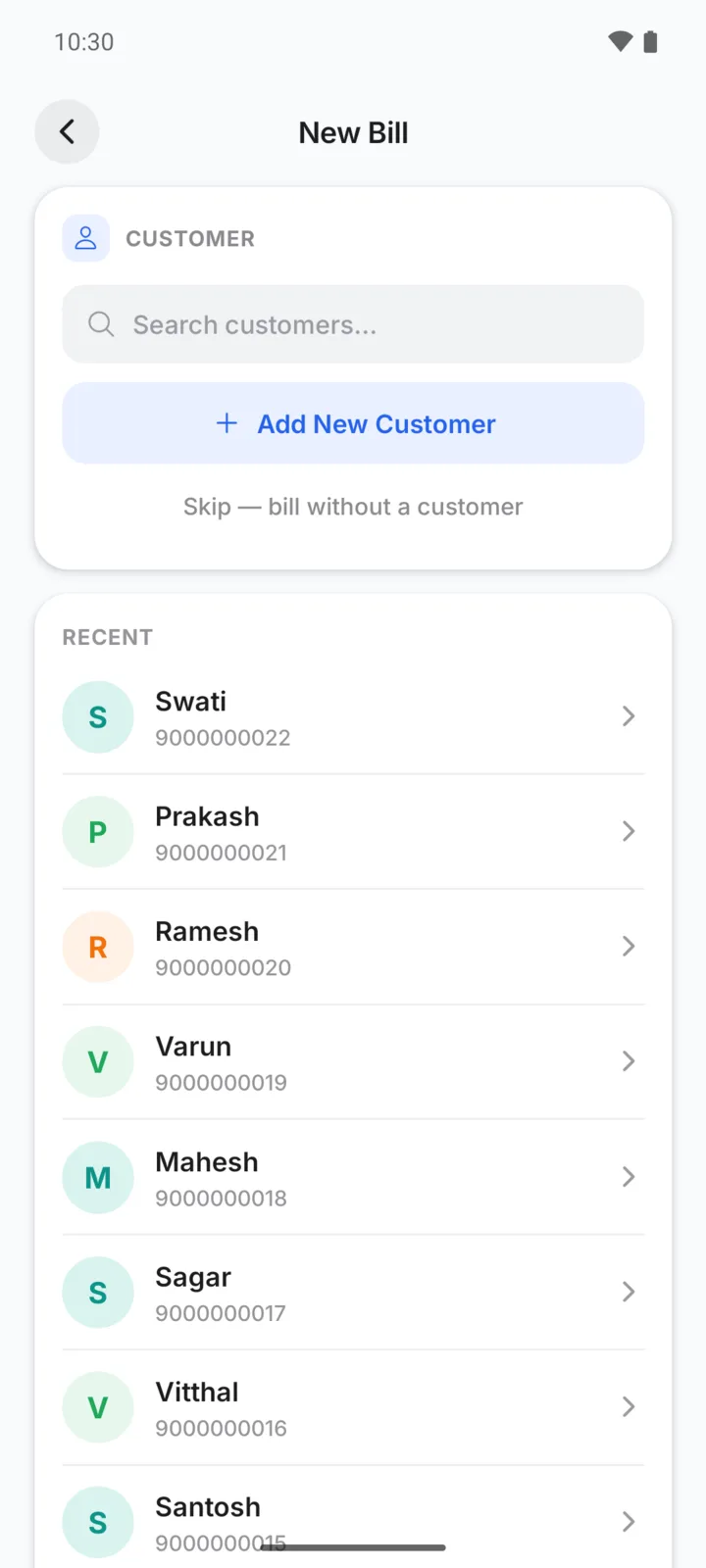
Choose the customer
Search by name or phone number and tap the customer. For a new customer, tap Add New Customer, enter the name (phone and address are optional) and tap Add & Select.
For a quick counter sale, tap Skip — bill without a customer. The bill is saved without a name, so it will not show in any customer's history and you cannot set a service reminder on it.
Choose the vehicle
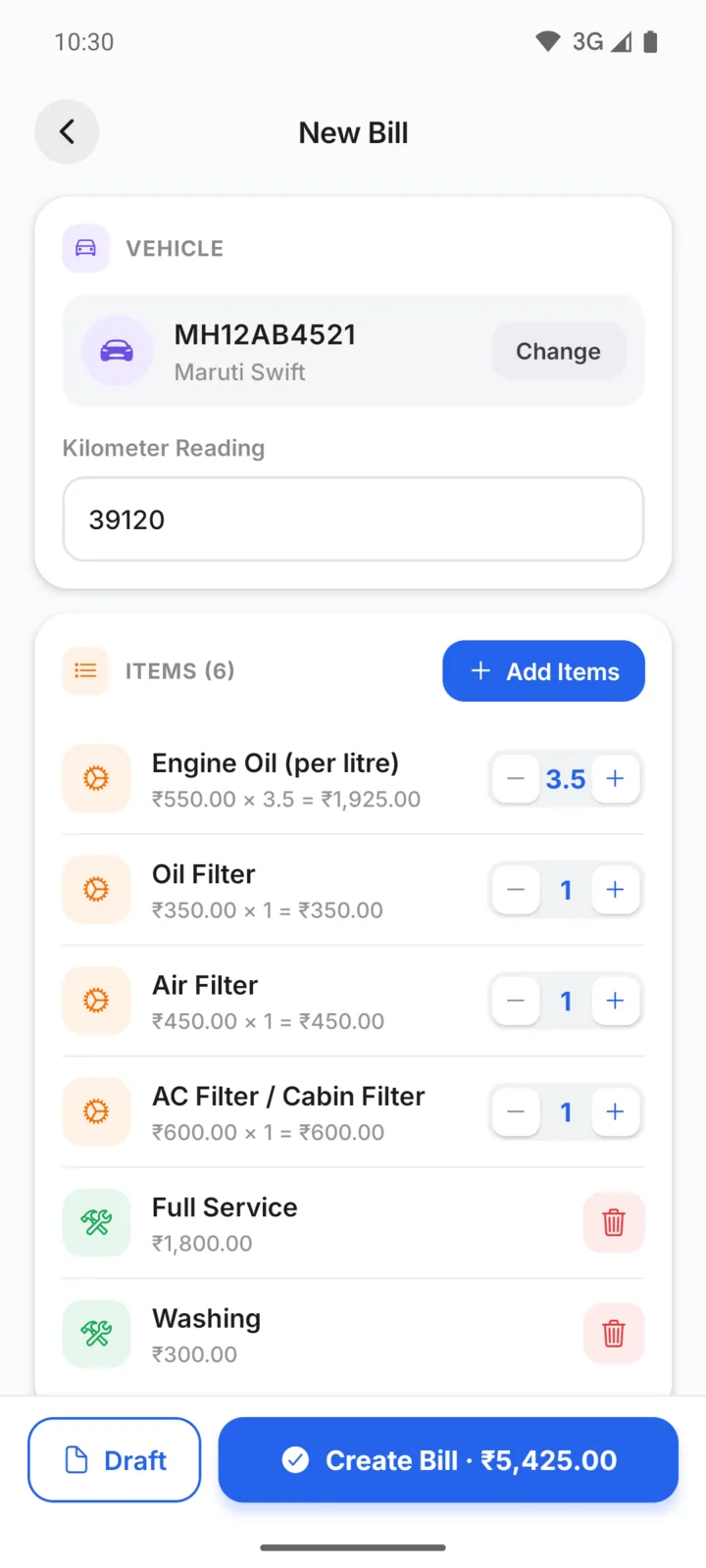
If the customer has only one vehicle, it is picked for you. Otherwise tap Select vehicle and choose one, or tap Add Vehicle and enter the vehicle number and model.
Type the Kilometer Reading if you note it. It is saved on the bill.
Add parts and labour
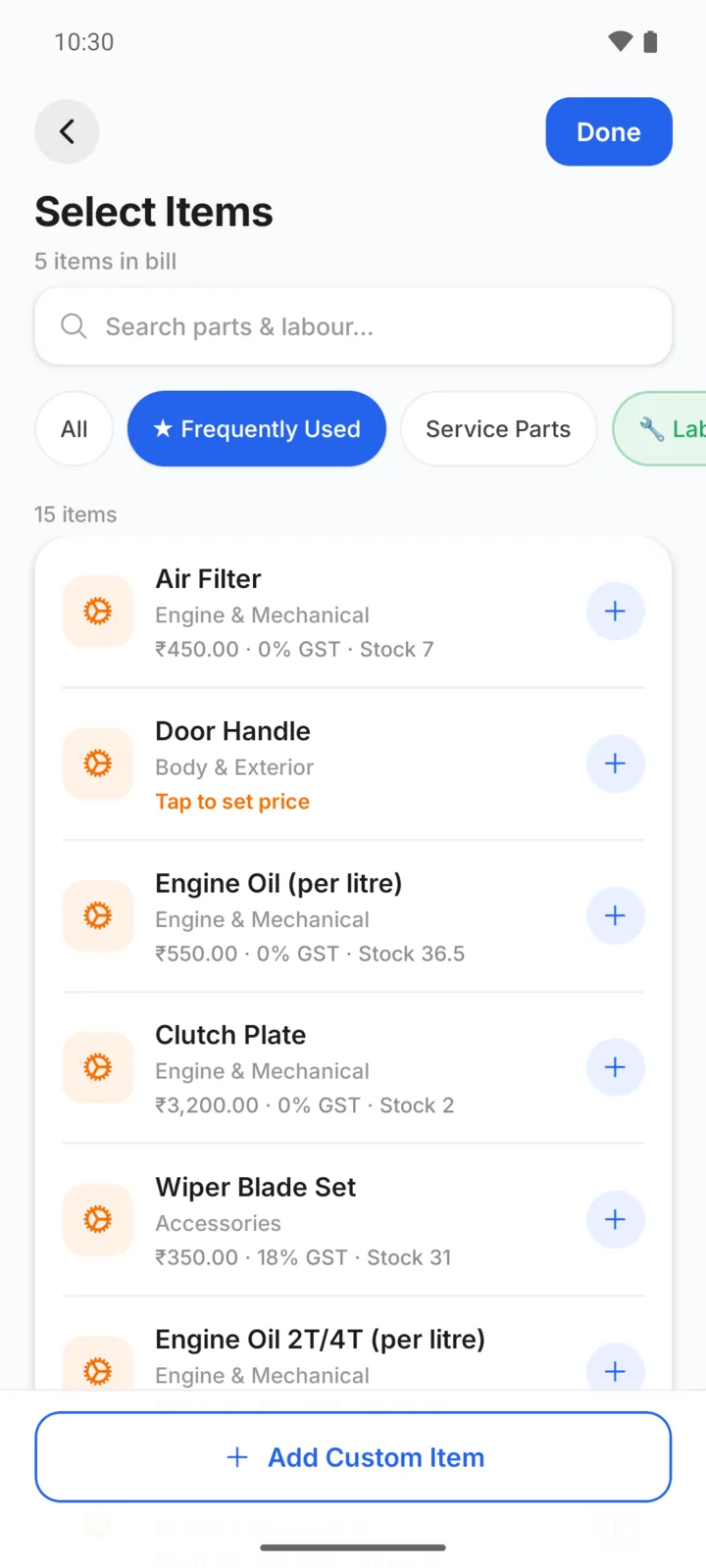
Tap Add Items. Search for a part or service by name, or pick from Quick add and Frequently Used. Tap an item to add it to the bill; tap it again to add one more.
- No price yet? The item says Tap to set price. Enter the price, quantity and GST rate, then tap Add to Bill. This price is for this bill only. To use it every time, set it on the item in Inventory.
- Not in your list? Tap Add Custom Item, enter the name and price, choose Parts or Labour, and tap Add to Bill. It goes on this bill only and is not added to your inventory.
Tap Done when you have added everything.
Check quantities
Each part has − and + buttons. You can also tap the number and type it, such as 3.5 for litres of engine oil. Bringing a part down to zero removes it. Labour lines have a delete button.
Add a discount or note
Under Summary, choose ₹ for a flat discount or % for a percentage, and enter it. The Grand Total updates as you type. Add anything the customer should know under Notes.
Set the next service reminder (optional)
If a vehicle is selected, tick Service Reminder. GarageBilling creates a reminder for the next service, after 6 months or 5,000 km by default. Change either number if you like.
Save the bill
Tap Create Bill. The button shows the total, for example Create Bill · ₹5,425. The finished bill opens, ready to share on WhatsApp, print, or record a payment.
If the job is not finished, tap Draft instead. A draft keeps the bill without counting it as a sale, and you can finish it later from the Bills tab.
What the customer gets
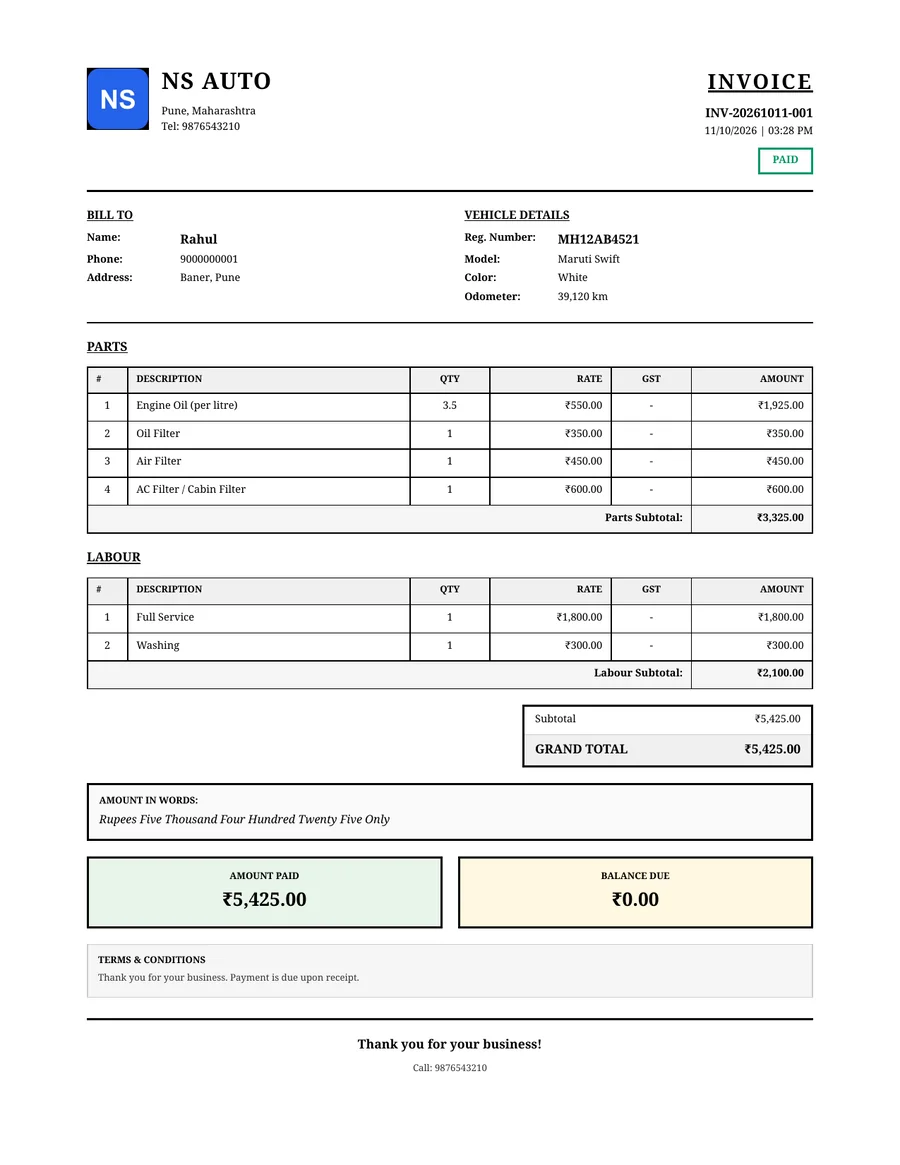
When you share the bill, the customer gets a PDF with your garage name and logo, their vehicle, the parts and labour listed separately, the total and whether it is paid.
On the web app
Everything on this page. You can skip the customer for a counter sale.
Make the same bills from a computer, with the same account. Every bill needs a customer and a vehicle, and there is no Service Reminder option while making the bill.