GST on bills
How to add your GSTIN, set GST rates on items, and make GST bills with CGST and SGST in GarageBilling, plus the GST report.
GarageBilling makes both GST and non-GST bills. You set a GST rate on each item; GarageBilling works out the tax and splits it into CGST and SGST on the bill.
GarageBilling is not tax advice
GarageBilling calculates GST from the rates you choose. It does not pick rates for you, file returns, or create e-invoices or e-way bills. Check the right rates with your CA.
1. Add your GSTIN
Go to Settings → Garage Settings. Under GST Information, enter your GSTIN and choose your State. Tap Save Changes.
With a GSTIN saved, your bills are titled Tax Invoice and show your GSTIN. Bills with GST also get a GST Summary table. Without a GSTIN, bills are titled Invoice.
2. Set the GST rate on your items
Open an item in Inventory and choose its GST Rate: No GST, 5%, 12%, 18% or 28%. Tap Save Changes. The rate fills in whenever you add the item to a bill.
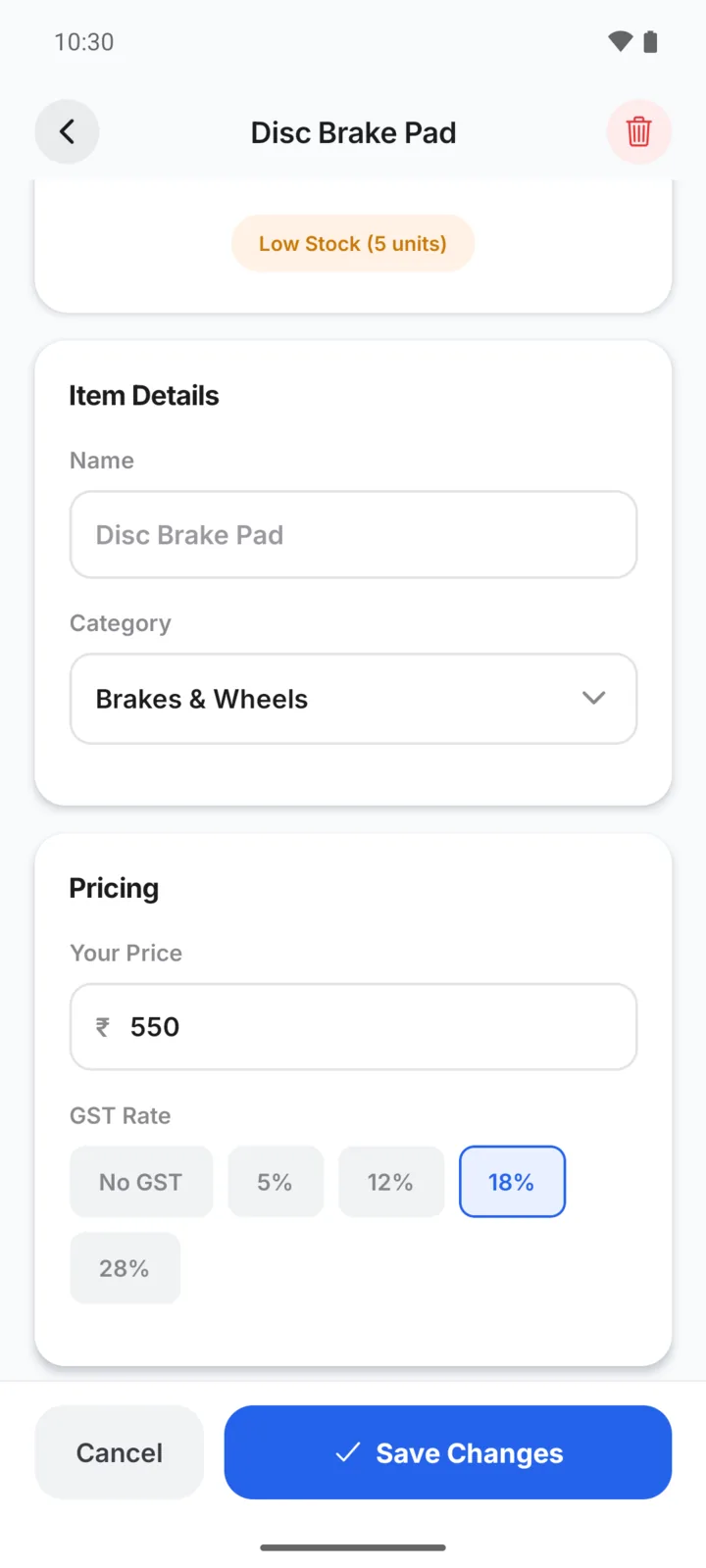
You can also choose the rate for an item when you set its price during billing, or for a one-off Custom Item.
For items you added yourself, you can save an HSN Code (parts) or SAC Code (labour). It is printed under the item on the bill.
3. Make the bill
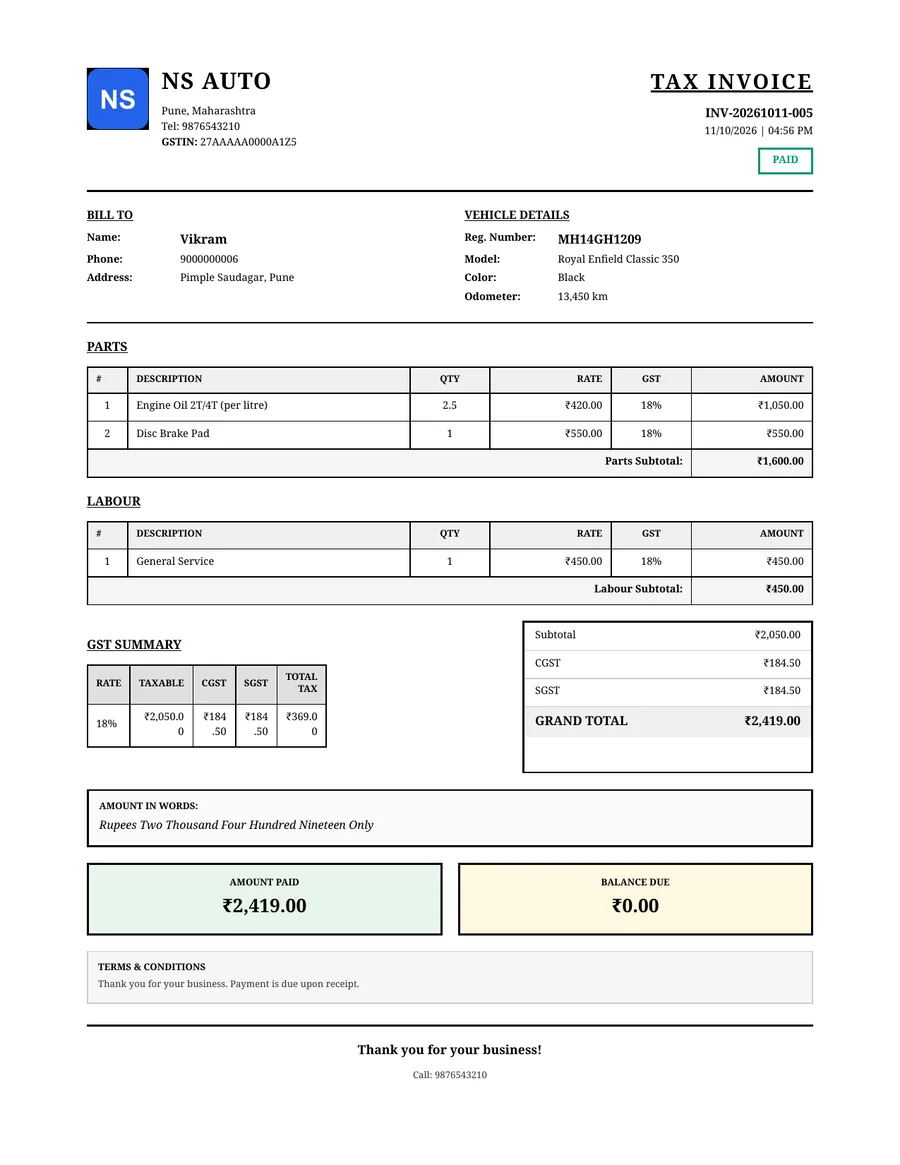
Make the bill as usual. Each line shows its GST rate, and the summary shows the Subtotal, CGST, SGST and Grand Total.
GarageBilling works out GST on each line (quantity × price × rate) and splits it equally into CGST and SGST. For example, Vikram's bill had ₹2,050 of parts and labour at 18%: ₹184.50 CGST plus ₹184.50 SGST, a total of ₹2,419.
A few things to know:
- Discounts are taken off after GST. GST is worked out on the full amount before the discount.
- IGST is not supported. Every GST bill shows CGST and SGST.
- No GST? Leave items on No GST, or don't add a GSTIN. A bill can mix GST and non-GST items.
The GST report
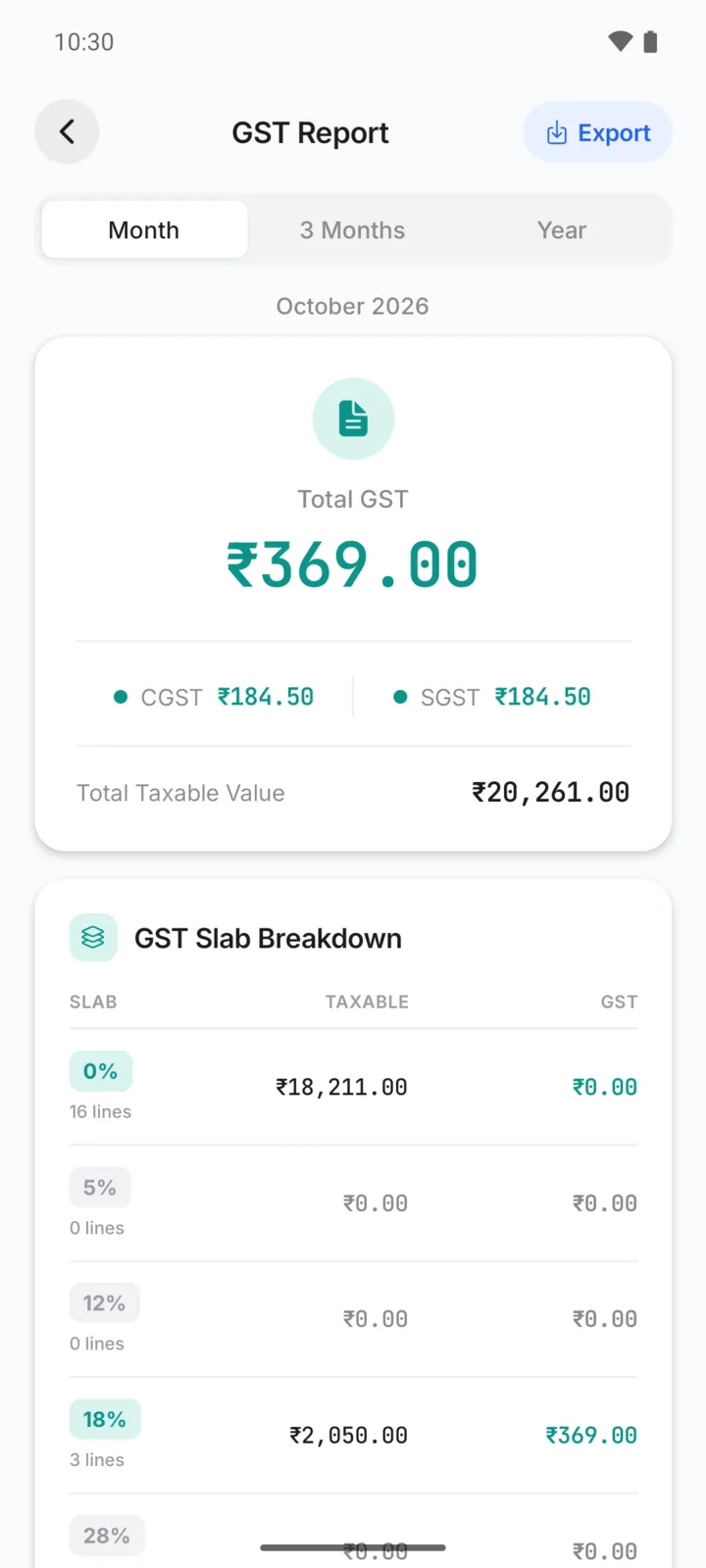
Open the Reports tab and tap GST report. Choose Month, 3 Months or Year to see:
- Total GST, split into CGST and SGST, and the total taxable value
- A breakdown by GST rate
Only finished bills count; drafts, estimates and cancelled bills are left out. Year means January to December, and 3 Months is this month and the two before it. Tap Export to save it as a PDF or CSV for your CA.