Prices and custom items
How to set your own prices on GarageBilling's parts and labour list, add items of your own, and bill one-off items.
GarageBilling starts you with a list of parts and labour for your kind of garage. The list has the names but no prices, because prices are yours to set. Once a price is saved, it fills in by itself every time you add that item to a bill.
Set the price of an item
Open the item
Open the Inventory tab and tap the item. Use the search box or the category chips to find it quickly. If the item has no price yet, the item screen shows Not Set.
Enter your price and GST rate
Under Pricing, type Your Price. Choose the GST Rate: No GST, 5%, 12%, 18% or 28%.
Save
Tap Save Changes. From now on, this price and GST rate fill in whenever you add the item to a bill.
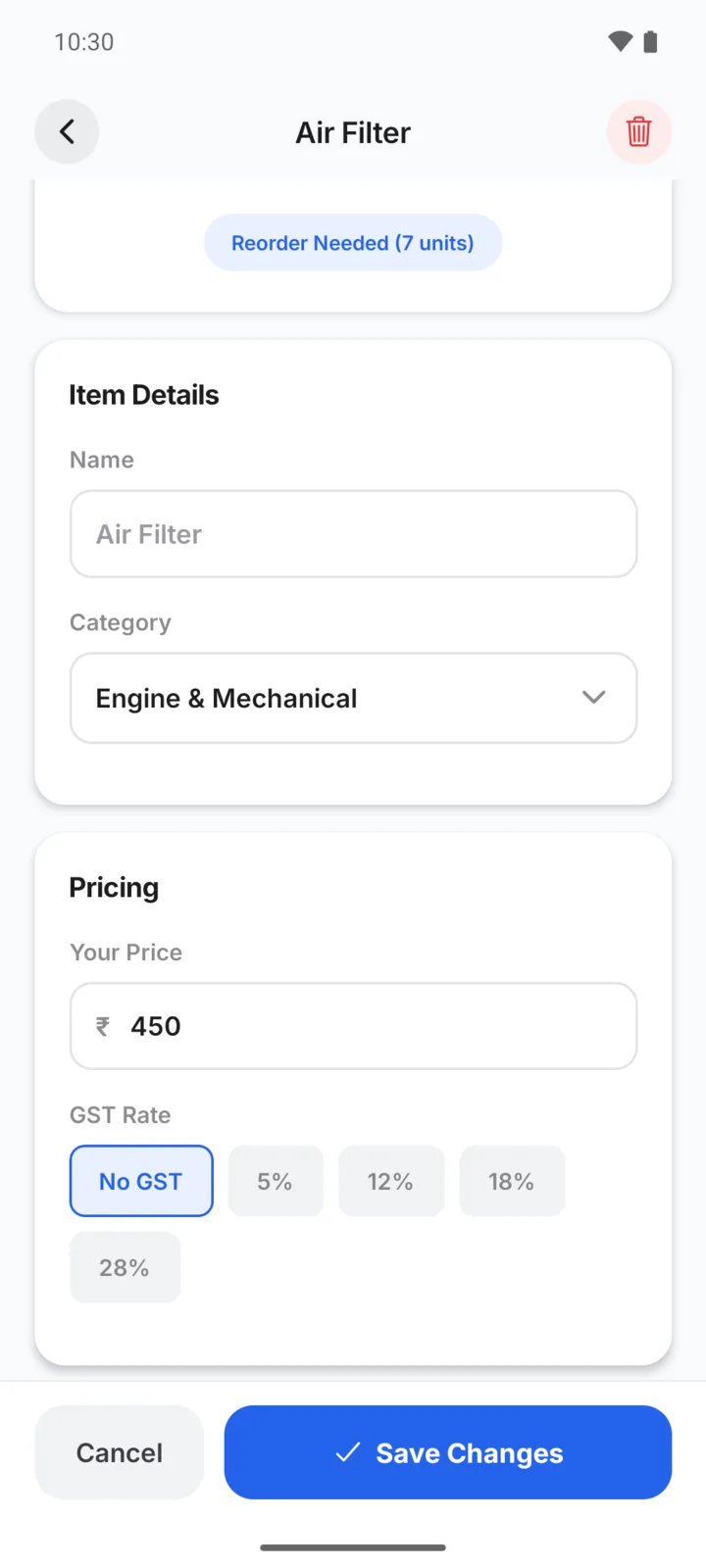
You can also rename an item or move it to another category on the same screen, under Item Details.
Prices typed while billing
If you add an item that has no price yet while making a bill, GarageBilling asks for a price there and then. That price goes on that bill only. It is not saved to the item. To use a price every time, set it in Inventory.
You can always change a price on a single bill without changing your saved price.
Add your own item
For parts or work you do often that are not in the list:
- On the Inventory tab, tap +.
- Choose Parts or Labour.
- Enter the Name and Price.
- Optionally, choose a Category, a GST Rate and an HSN Code (for parts) or SAC Code (for labour).
- For parts, enter the Initial Stock Quantity if you track stock.
- Tap Add Item.
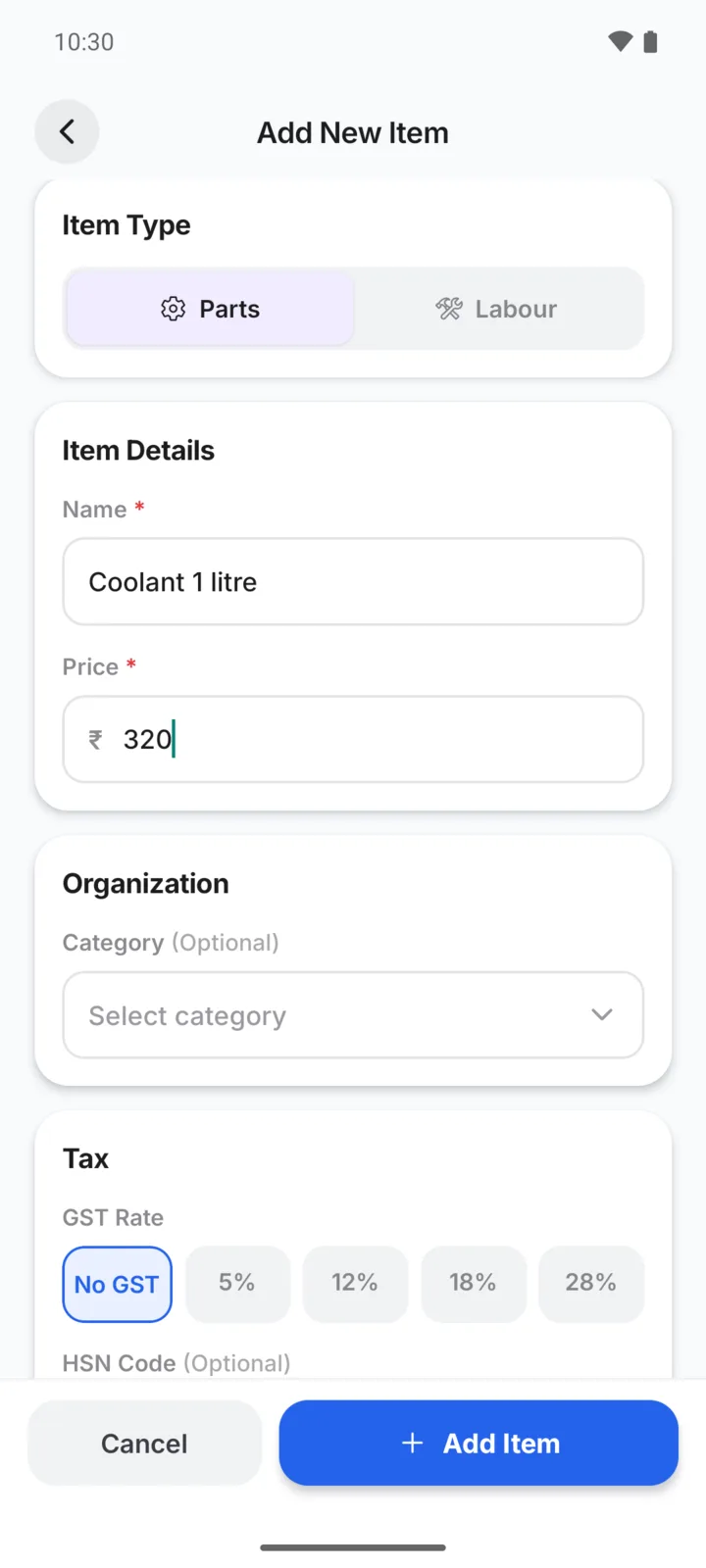
If you don't choose a category, the item goes under Custom Parts or Custom Services.
One-off items on a single bill
For something you will probably never bill again, there is no need to add it to your inventory. While making the bill, tap Add Custom Item in the item list, enter the name and price, choose Labour or Parts, and tap Add to Bill. It appears on that bill only, and does not change your stock.
Remove an item you don't use
Open the item and tap Remove from my inventory, or the trash icon at the top. An item from GarageBilling's list can be brought back later from Deleted Items (the trash icon on the full inventory list). An item you added yourself is deleted for good.
To hide a whole group of items, hide its category instead. See Categories and favourites.