Estimates
How to give a customer an estimate in GarageBilling, share it on WhatsApp, change it, and convert it into the bill.
An estimate tells the customer what a job will cost before you start. In GarageBilling you make it the same way as a bill. When the customer agrees and the work is done, you convert the estimate into the bill, so you never type the items twice.
This guide follows Anjali's Tata Nexon, which needs a new clutch at NS Auto.
Make an estimate
Tap New Estimate
On the Home screen, tap New Estimate.
Add the customer, vehicle and items
Choose the customer and vehicle, then tap Add Items and add the parts and labour, exactly as you would for a bill. For parts that are not in your list, such as a pressure plate for this car, use Add Custom Item.
Save the estimate
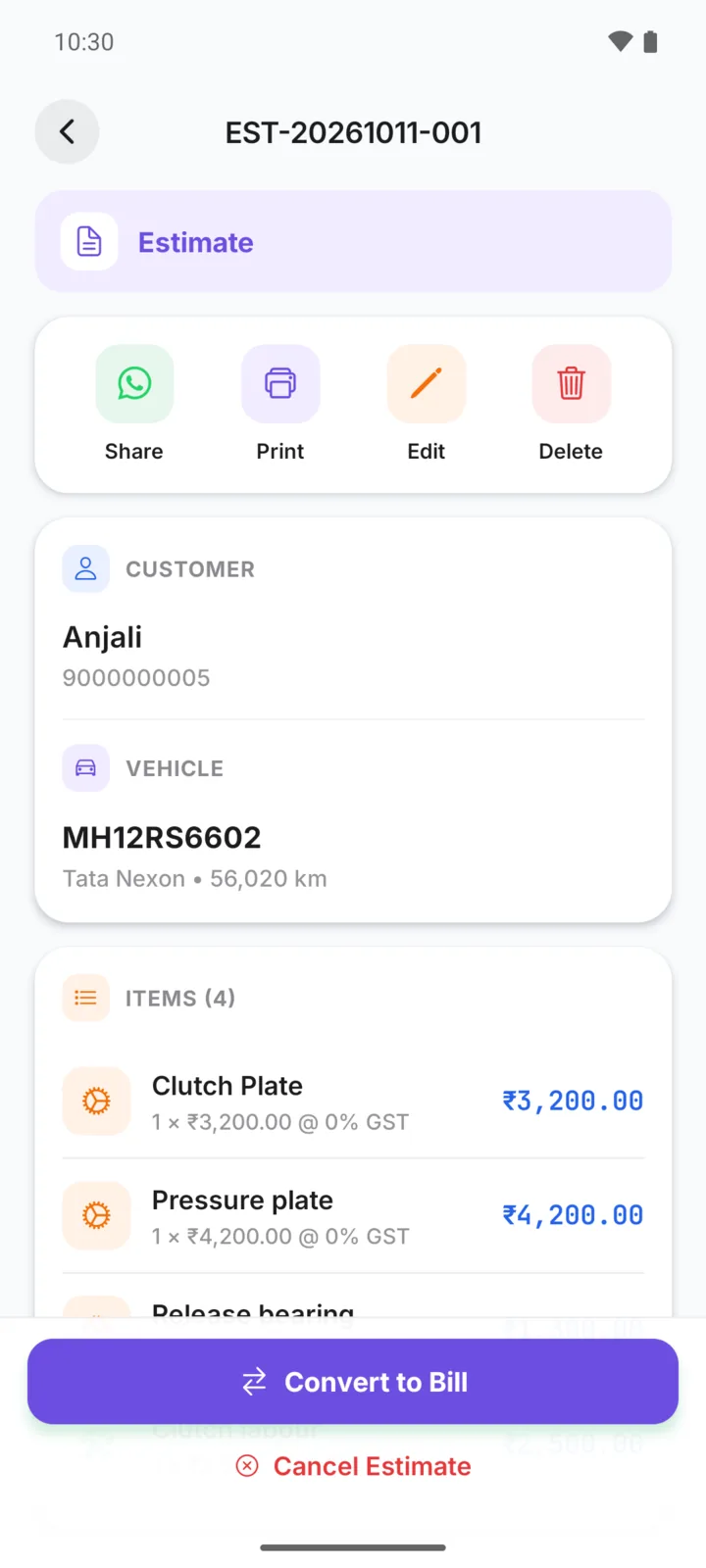
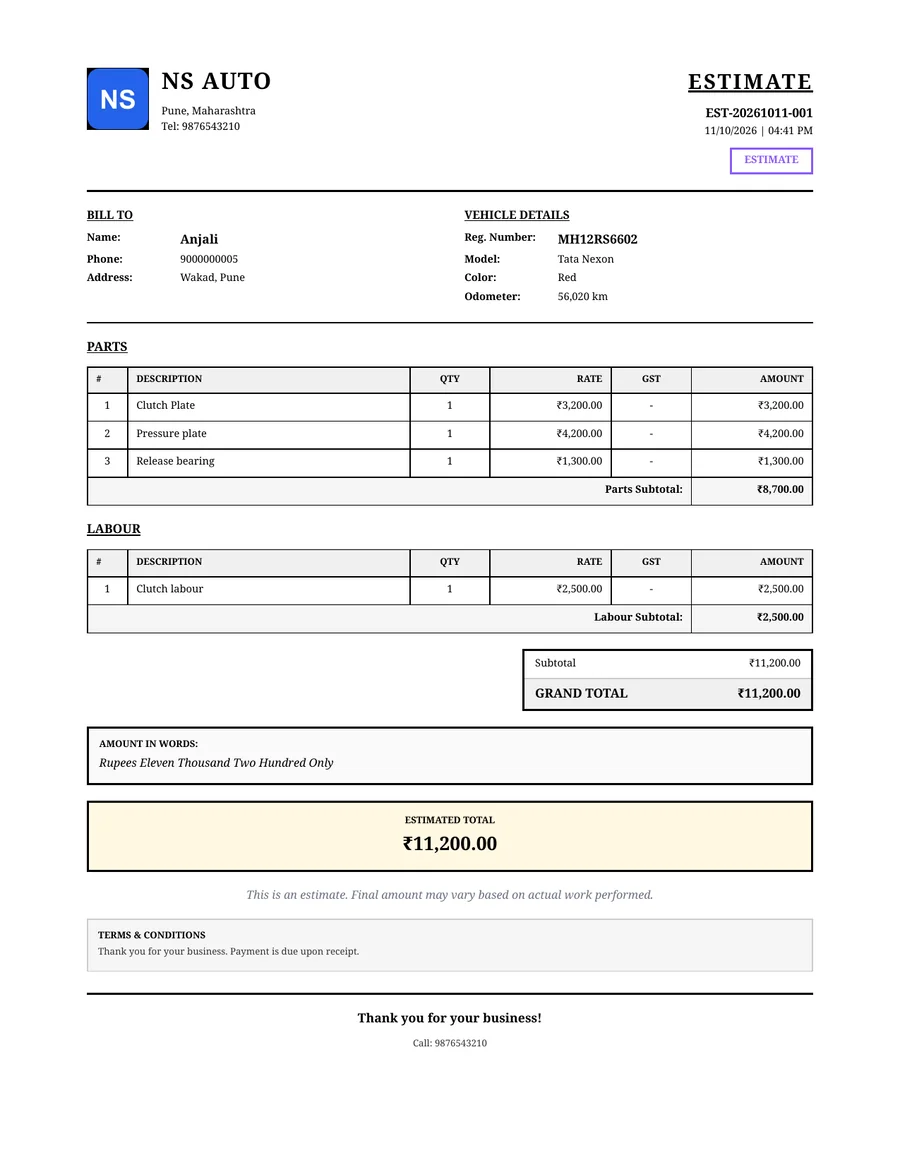
Check the total and tap Save Estimate. The estimate gets its own number, such as EST-20261011-001, separate from your bill numbers.
Share it
Tap Share on the estimate and send the PDF on WhatsApp, the same way as sharing a bill. The PDF is clearly titled as an estimate.
An estimate is only a quote. It does not count as a sale in your reports, and it does not take parts out of your stock.
Change an estimate
If the customer agrees to only part of the work, or you find something more, open the estimate and tap Edit. Add or remove items, then save. You can share the updated estimate again.
All your estimates are on the Bills tab under the Estimate filter.
Convert the estimate into a bill
When the customer has agreed and the work is done:
- Open the estimate and tap Convert to Bill.
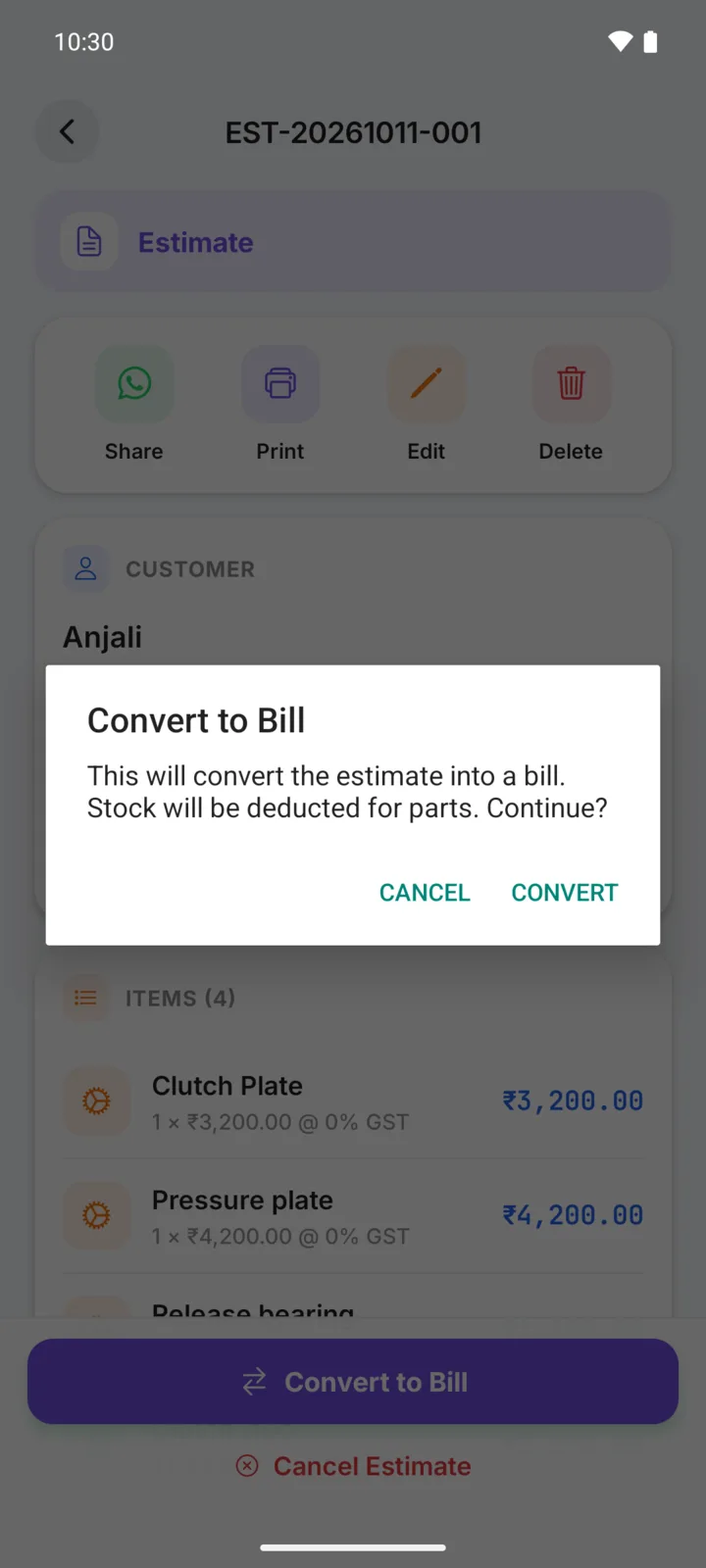
- GarageBilling asks you to confirm, because the parts will now be taken out of your stock. Tap Convert.
- The estimate becomes a bill with a new bill number and the same items and prices.
From then on it is a normal bill: share it, print it and record the payment.
No customer sign-off in the app
GarageBilling does not collect the customer's approval. Get their go-ahead the way you normally do, on WhatsApp or a call, then convert the estimate.
If the customer says no
Open the estimate and tap Cancel Estimate, or tap Delete to remove it completely.
Related
Bill design, logo and terms
How to put your logo, garage details and terms on GarageBilling bills, choose one of the four bill designs, and set the bill number prefix and file name.
Payments and dues
How to record full and part payments on a GarageBilling bill, and how to find every customer who still owes you money.