Stock
How GarageBilling tracks the stock of your parts, when stock goes up and down, and how to see low and out-of-stock parts.
GarageBilling can keep a count of the parts you have. When you bill a part, it is taken out of stock, so you can see what is running low before you run out. Labour has no stock.
Stock is there to help you keep track. It never stops you from billing: you can add a part to a bill even if the count says zero.
Set the stock for a part
- Open the Inventory tab and tap the part.
- Under Stock Management, enter:
- Current Stock: how many you have now (decimals work, for example litres of oil).
- Low Stock Alert: warn me when stock falls to this number (5 by default).
- Reorder Point: the level at which you usually reorder (10 by default).
- Tap Save Changes.
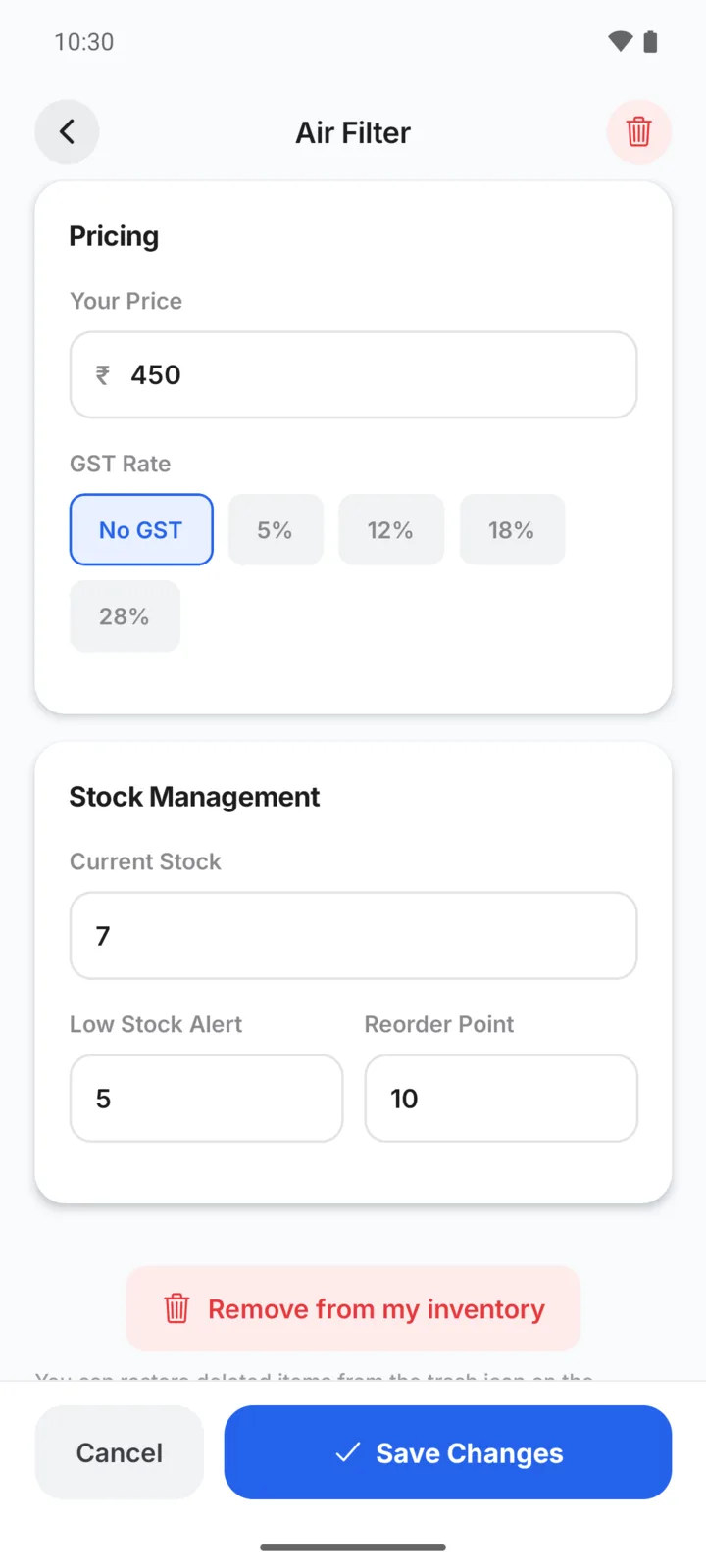
For a new part, enter the Initial Stock Quantity when you add it.
When stock changes
| What you do | Stock |
|---|---|
| Create a bill | Goes down by the parts billed |
| Edit a bill | Adjusts to the new quantities |
| Cancel or delete a bill | The parts go back into stock |
| Convert an estimate into a bill | Goes down at that moment |
| Save a draft or an estimate | No change |
| Add a one-off Custom Item to a bill | No change (it is not in your inventory) |
Stock never goes below zero.
Stock labels
Each part shows how it is doing: In stock, a number left when it is low or at the reorder point, or Out of stock. The Inventory tab also shows a banner when items are out of stock or low, with a Review button.
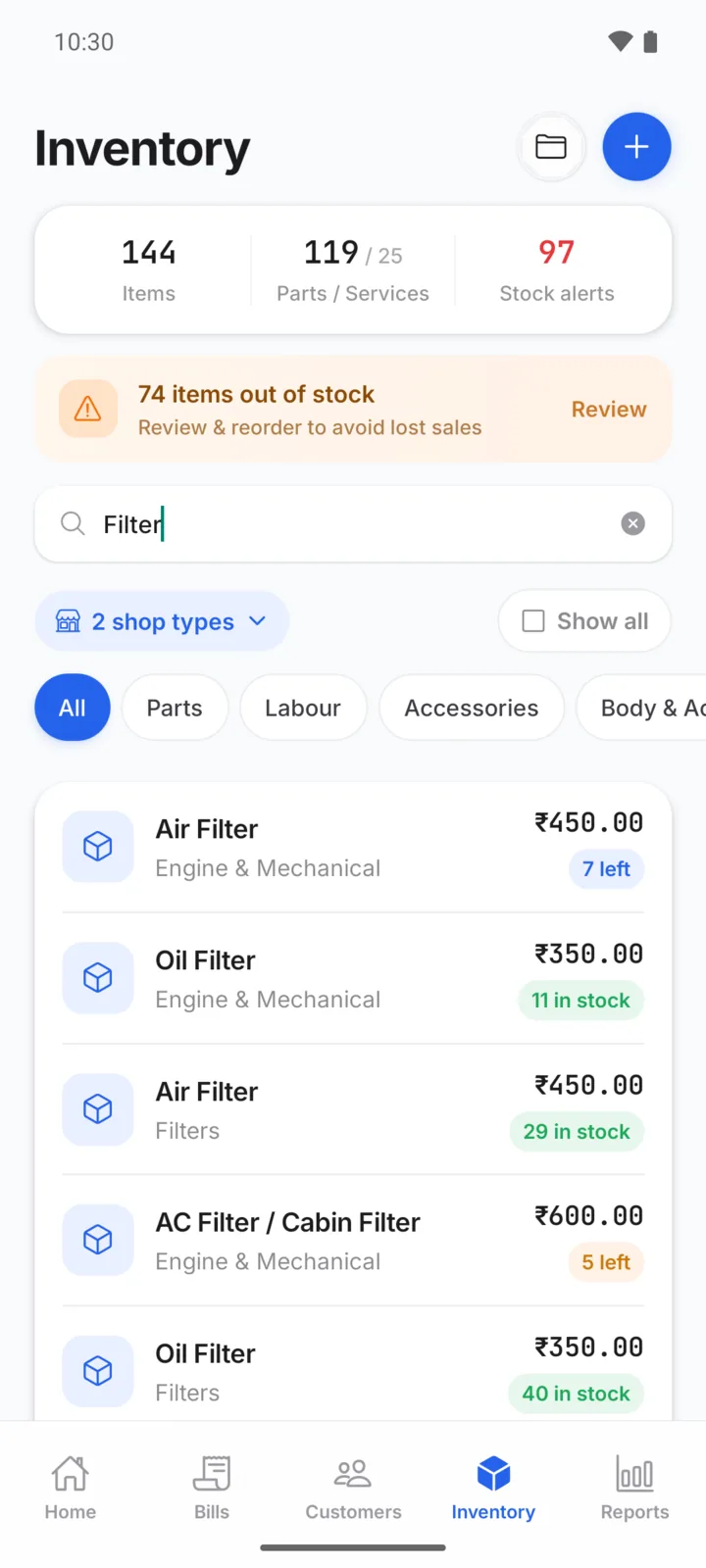
A part from GarageBilling's list starts at zero, so it shows Out of stock until you enter your stock. If you don't track stock for some parts, you can ignore this.
The stock report
Open the Reports tab and tap Stock report. It shows:
- Total Items and Stock Value (your selling price × the stock count, for parts)
- Low Stock and Out of Stock: tap either to list just those items
- A searchable list of every item with its stock
Tap Export to save the report as a PDF or CSV file. See Reports.
Related
Categories and favourites
How to add, rename and hide inventory categories in GarageBilling, and pin your favourite categories to the front of the item list.
Import items and customers from Excel
How to bring your parts list or customer list into GarageBilling from an Excel or CSV file, using the web app.