Reports
The six reports in GarageBilling (revenue, pending payments, stock, customers, GST and services and parts) and how to export them.
The Reports tab shows how your garage is doing, from the bills and payments you have recorded. The top shows This month at a glance: total revenue, the number of bills and GST. Below are six reports.
The six reports
| Report | What it shows |
|---|---|
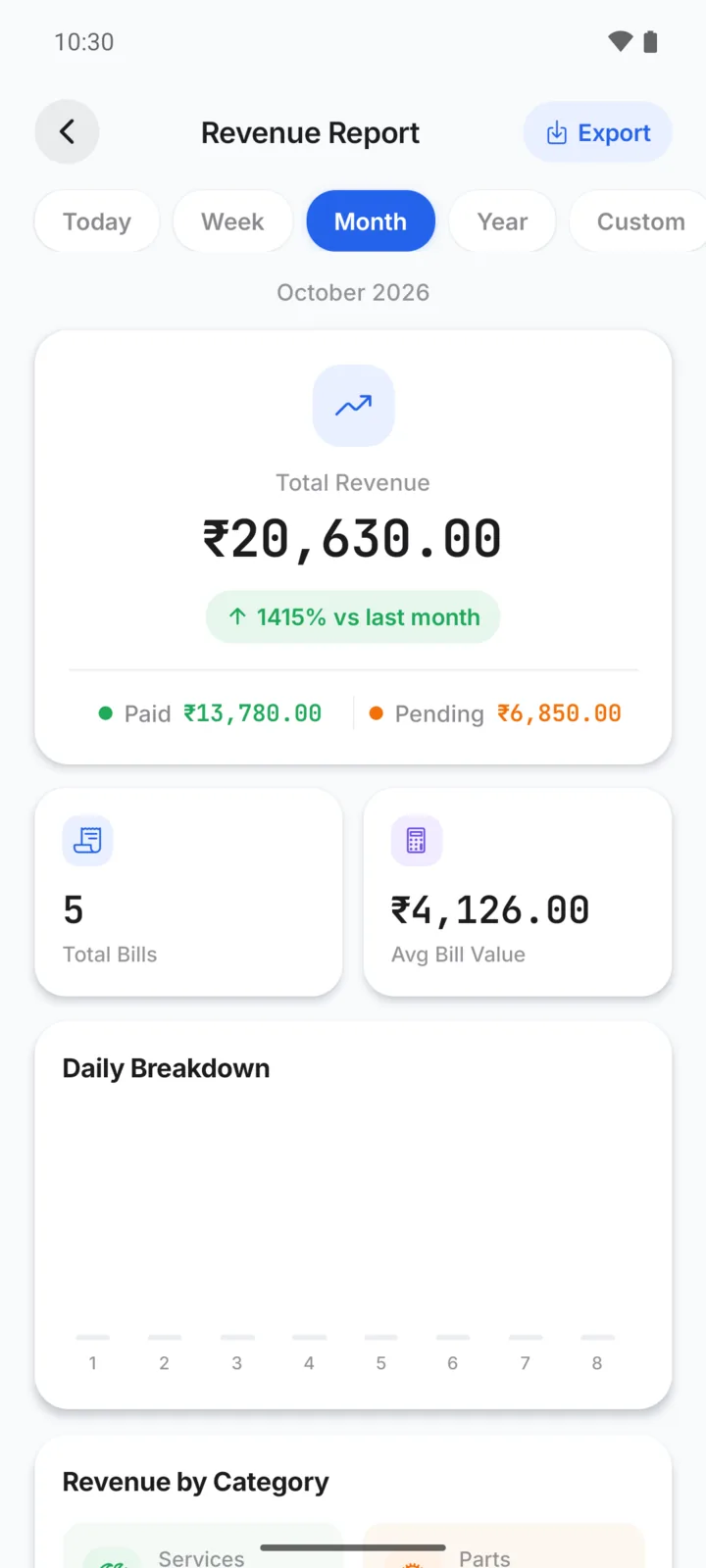
| Revenue | Total revenue for today, this week, month or year, or dates you pick. How much was paid and how much is pending, the number of bills, the average bill, a chart, top customers, payment methods and every transaction. |
| Pending payments | Every unpaid and part-paid bill, the total pending, and bills overdue by 30+ days. Sort by oldest, highest amount or most recent. |
| Stock report | Your items with their stock, the stock value, and which are low or out of stock. |
| Customer report | Customers by how much they have spent, what they owe, or their last visit. |
| GST report | GST collected for a month, 3 months or a year, split into CGST and SGST, by rate. |
| Service report | Your most-billed services and parts, by how often, revenue or most recent. |
Reports count only finished bills (Unpaid, Partial and Paid). Drafts, estimates and cancelled bills are left out.
Billed is not the same as received
Revenue is the total of your bills. Paid is the money you have recorded as received, which can include payments on older bills. What customers still owe is in Pending payments.
Export a report
Open a report and tap Export, then choose:
- Export as PDF: best for printing and sharing. You can name the file first.
- Export as CSV: best for Excel or Google Sheets.
Your phone's share menu then opens, so you can save the file or send it, for example to your CA on WhatsApp.
Export all your bills
On the Reports tab, tap Export at the top to save every bill as a CSV file: the bill number, date, customer, vehicle, subtotal, CGST, SGST, discount, total, status, amount paid and balance.