Customers and vehicles
How to add customers and their vehicles in GarageBilling, see each customer's bills and dues, and archive customers you no longer need.
Each customer in GarageBilling can have one or more vehicles. Every bill is saved under the customer and the vehicle, so next time they come in you can see what was done, what they spent and what they still owe.
Add a customer
You can add a customer while making a bill, with Add New Customer. To add one on its own:
- Open the Customers tab and tap +.
- Enter the Full Name. The Phone Number, Address and Notes are optional.
- Tap Add Customer.
The phone number must be a 10-digit Indian mobile number. Each phone number can belong to only one customer: if you enter a number that is already saved, GarageBilling offers to open that customer instead.
Add the phone number if you can. It is needed for the Call and WhatsApp buttons on reminders.
Add a vehicle
Open the customer and tap Add on the Vehicles card. Enter:
- Vehicle Number (required), such as MH12AB4521
- Car Model (required), such as Maruti Swift or Honda Activa
- Color, Year, Fuel (Petrol, Diesel, CNG, Electric, LPG or Hybrid), Odometer (km) and Notes, all optional
Tap Add Vehicle. You can also add a vehicle while making a bill.
The customer page
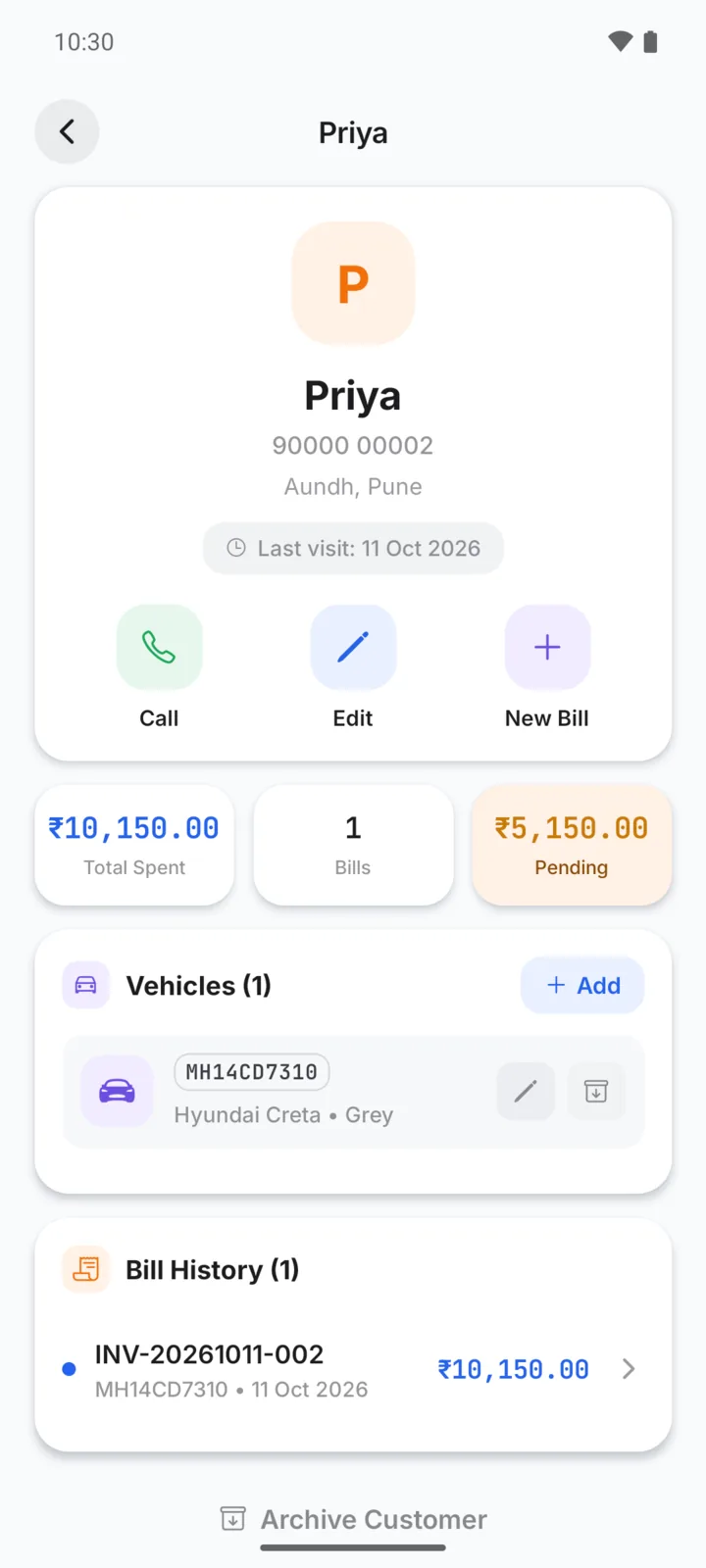
Tap a customer on the Customers tab to see:
- Call, Edit and New Bill buttons. New Bill starts a bill with this customer already chosen.
- Total Spent, the number of Bills, and Pending, what they still owe.
- Vehicles: tap a vehicle to start a bill for it straight away. Use the pencil to edit it.
- Bill History: their latest bills with the status of each. Tap one to open it.
Find a customer
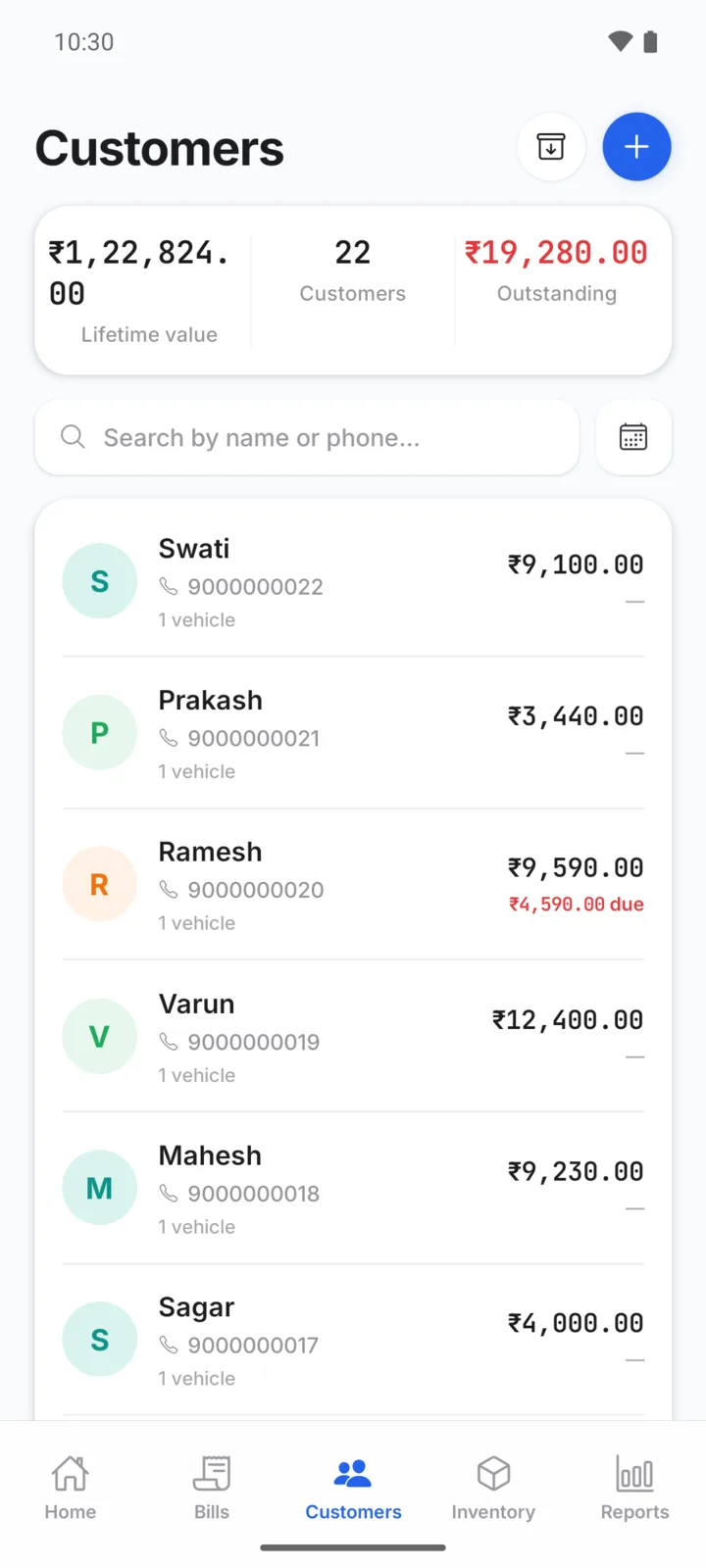
Search the Customers tab by name or phone number. Each row shows the customer's vehicles, what they have spent and what is due. The calendar button shows customers who had a bill today, this week, this month or in the last 30 days.
Archive a customer
To clear old customers out of your lists without losing their bills, open the customer and tap Archive Customer at the bottom (or press and hold the customer on the Customers tab). Their bills and history stay safe, and their vehicles are archived with them.
To bring one back, tap the archive icon at the top of the Customers tab and tap Restore.
You can also archive a single vehicle the customer has sold: tap the archive icon next to it on the customer page. Archived vehicles are listed on the same page, with a button to restore them.